Upload haulage model
XECUTE uses the same travel time engine as HAULSIM and can display HAULSIM routes and calculate travel times for equipment resources.
To manage a site's haulage models, go to Config > Site Edit  > Haulage
  .
.
Travel time calculations are performed under the following conditions:
- The various travel time components are truck cycle times (full and empty), and include loading, spotting and dumping times. The loading, spotting and dumping times can be set for the nominal truck based on the XECUTE resource (that moves material) and will override the values in the HAULSIM model.
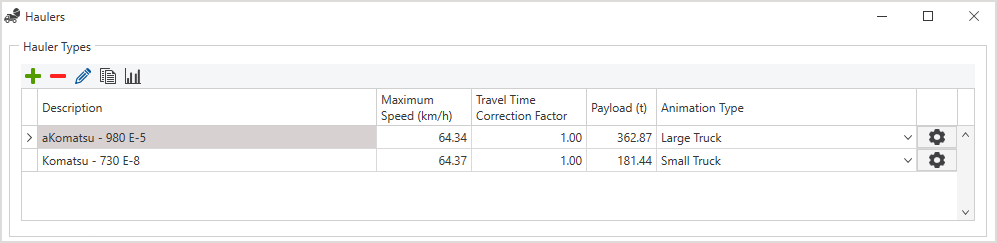
- Travel times are based on the total quantity (MASS) moved during a schedule period and the payload of the nominal truck imported from HAULSIM. The truck imported from HAULSIM is the default truck without any custom payload applied, and is the first truck listed in HAULSIM sorted by description.
- To control which truck type to import into XECUTE, edit the description in HAULSIM as shown below to ensure the truck description you want is the first in the list (sorted alphabetically).
- XECUTE uses a default retarder setting of 70% and supports mechanical and electrical trucks.
Haulage Configuration
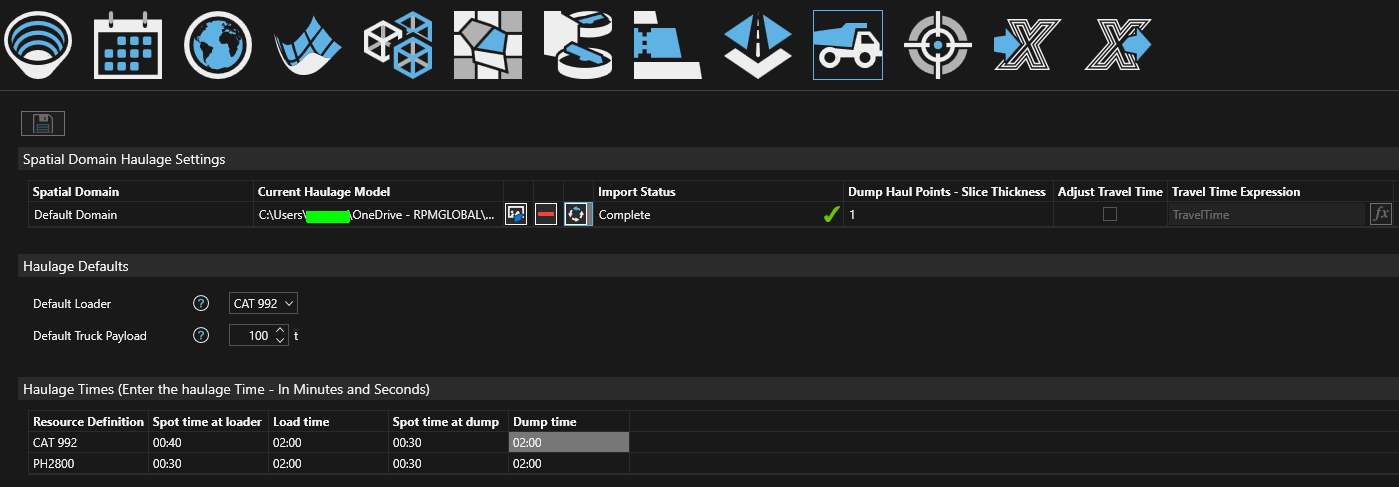
- Click the truck icon (outlined above) to open the haulage setup window.
- Spatial Domain Haulage Settings. A haulage model can be loaded into each Spatial Domain configured for a site.
- Click the Import Haulage file icon to select a file. XECUTE currently supports HAULSIM 3.3 or greater.
- Click the Save icon to save the file to Model Repository.
- The Import Status will update as the file is processed; a Complete status with a green tick signifies data imported OK.
- Set the Dump Haul Points - Slice Thickness. A virtual slice is created at the top of the dump solid and the centroid of this slice is projected up to the dump surface to create the destination node for the network segments leading to the dump destinations. This enables a more accurate representation of the dumping point.
- [Optional] tick the Adjust Travel Time check box to apply any configured Travel Time Adjustment expression.
- Click the fx button to open the expression builder to create an adjusted travel time expression. The expression returns an adjusted travel time in minutes. The expression builder includes fields for the various components used in the calculation of travel time as described in the table below.
- Haulage Defaults. These settings are used in fixed travel time calculations and fallback travel time calculations (when no haul route can be found).
- Default Loader - the spot, dump and load times based on the selected loader.
- Default Truck Payload - the truck payload to use when calculating non-modelled haulage.
- Haulage Times, nominal spot, load and dump times based on the loader Resource.
- Enter the time in minutes:seconds for each of the fields.
- These times override any HAULSIM values. See Travel time calculation for more details.
- Click Save to apply the configuration.
The haul routes are now available in XECUTE and will include auto-generated connection roads from activity area centroids to the haul route arcs. To reset the haul route in XECUTE back to the original imported state click the Reset Haulage button  .
.
To visualise haul routes in XECUTE Client, the XECUTE User role in RPM Integration Management Studio (IMS) must have the following permission enabled. Permissions > EPF Core > Locations and Data Sources > Retrieve Packages From. This permission is part of the standard XECUTE configuration as defined in the XECUTE Administration Guide.
Travel Time expression builder groups and fields
| Group | Fields | Description |
|---|---|---|
| Principal Fields | System and User Principal Fields | See XECUTE field reference. |
| Haulage | Available haulage fields | Calculated haulage fields. See XECUTE field reference > Haulage. |
| Material Flow | Selected fields from the Material Flow | See XECUTE field reference > Material Flow. |
| Date |
Schedule period fields Duration |
See XECUTE field reference > Date\ReportingPeriod. See XECUTE field reference > Productivity. |
Managing haulage for a site